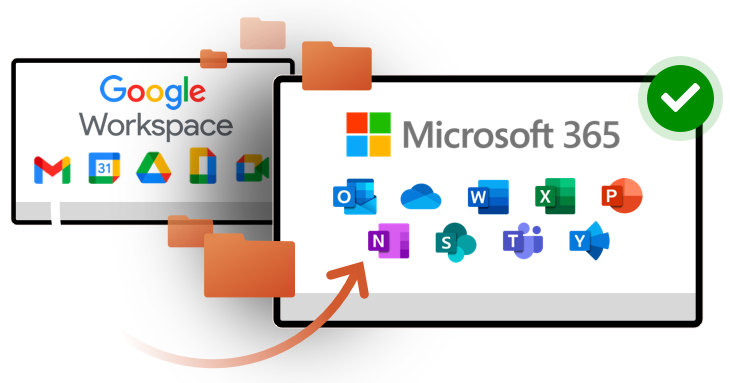
Migrating from Google Workspace (formerly G Suite) to Microsoft 365 (Office 365) is a major digital transformation for any organization. To ensure a smooth transition, IT teams must follow a structured, well-planned migration strategy that minimizes downtime and prevents data loss.
At Micro Cloud IT Solutions, we provide secure and seamless Google Workspace to Microsoft 365 migration services for businesses of all sizes. This guide explains the essential technical steps involved in a successful migration.
Why Migrate from Google Workspace to Microsoft 365?
Organizations migrate from Google to Microsoft 365 to benefit from:
-
Advanced security and compliance tools
-
Enterprise-grade email and collaboration
-
Microsoft Teams, OneDrive, and SharePoint integration
-
Centralized IT management
-
Scalability for business growth
A successful migration requires careful preparation, testing, and execution.
Step-by-Step Google Workspace to Microsoft 365 Migration Process
Step 1: Understand IMAP Mailbox Migration
Before starting, IT teams must understand how IMAP mailbox migration works. Microsoft provides guidance on how email data is transferred from Gmail to Exchange Online, including:
-
Migration impact on users
-
Data synchronization process
-
Limitations and best practices
Understanding this step ensures a smooth migration with minimal user disruption.
Step 2: Account Passwords & Two-Step Verification
Google treats Outlook and Exchange as less secure applications. Therefore:
-
Users must enable 2-step verification
-
App-specific passwords must be created
-
Temporary passwords should be assigned
This allows Microsoft 365 to securely access Gmail mailboxes for migration.
Step 3: Domain Verification
Before migrating data, IT must verify domain ownership.
Two options are available:
-
Verify the business domain by adding a TXT record to DNS
-
Use
companyname.onmicrosoft.comtemporarily
Domain verification ensures Microsoft 365 can accept mail for your organization.
Step 4: Add Users in Microsoft 365
Users can be added individually or in bulk. Each user must:
-
Have an Exchange Online mailbox
-
Be assigned a Microsoft 365 license that includes Exchange Online
At this stage, pause domain setup until Gmail mailboxes are migrated.
Step 5: Create Mailbox Migration List
A migration CSV file must be created containing:
-
Office 365 email address
-
Gmail username
-
Temporary Gmail password
Requirements:
-
Max 50,000 mailboxes per file
-
File size under 10 MB
-
One user per row
Passwords must be reset by a Google Workspace administrator before migration.
Step 6: Connect Microsoft 365 to Gmail
To create the connection:
-
Open Exchange Admin Center
-
Create a new migration endpoint
-
Select IMAP
-
Enter server:
imap.gmail.com -
Save endpoint
This allows Exchange Online to access Gmail mailboxes.
Step 7: Create Migration Batch
A test batch is recommended before migrating all users.
Steps include:
-
Upload migration CSV file
-
Select IMAP migration
-
Assign migration endpoint
-
Configure folders to exclude (Junk, Deleted Items, etc.)
-
Start batch automatically
-
Monitor migration status
Once completed:
-
Users log in using temporary password
-
Set new password
-
Verify mailbox content
-
Send test email
Tip: Lower DNS TTL to 3600 seconds to reduce email delays.
Step 8: Update DNS Records
After successful migration:
-
Change MX records to point to Microsoft 365
-
Complete domain setup in Microsoft 365 admin center
-
Fix domain issues using Microsoft setup wizard
This ensures all new email flows into Exchange Online.
Step 9: Stop Synchronization
Wait 72 hours for DNS propagation before stopping sync.
Once confirmed:
-
Delete migration batch
-
Gmail mailboxes stop syncing
-
All mail flows through Microsoft 365
Step 10: Import Google Contacts
Each user must export Google Contacts to CSV and import into Outlook using the Import/Export Wizard.
This step requires Outlook desktop application.
Step 11: Import Google Calendar
Users export Google Calendar and import into Outlook using Outlook’s Calendar Import Wizard.
This completes the migration of personal data.
Post-Migration Best Practices
After migration, Micro Cloud IT Solutions ensures:
-
Users clear Outlook auto-complete cache
-
Teams, OneDrive & SharePoint access verified
-
Security policies reviewed
-
Conditional Access & MFA enforced
-
Follow-up monitoring after one week
Why Choose Micro Cloud IT Solutions for Google to Microsoft 365 Migration?
At Micro Cloud IT Solutions, we deliver:
✅ Secure email & data migration
✅ Zero-data-loss approach
✅ Minimal business downtime
✅ Certified Microsoft professionals
✅ Fixed-price migration plans
✅ User training & support
✅ Post-migration security setup
We help businesses move confidently from Google Workspace to Microsoft 365 with complete peace of mind.
Get Expert Google to Microsoft 365 Migration Support
Migrating from Google Workspace to Microsoft 365 is a critical IT project that must be done correctly the first time. Let Micro Cloud IT Solutions handle your migration professionally and securely.
Contact Micro Cloud IT Solutions today for a free consultation and discover how we can provide a smooth, reliable, and hassle-free Google to Microsoft 365 migration for your business.